 on
on
10 Essential Freelancing Tools Compared: Which Ones Actually Deliver?
If you’re running a freelance business, you’ve probably noticed that everyone has an opinion about which tools are essential. The problem is that most advice skips over the trade-offs. Every platform has strengths and weaknesses, and what works for one freelancer might be overkill or underpowered for another. This list takes a different approach. Instead of just recommending tools, we’ll compare options, weigh the pros and cons, and help you understand what you’re actually getting. Whether you’re choosing between project management systems or invoicing platforms, you’ll walk away with a clearer picture of which tools match your actual needs.
- Legiit Versus Traditional Freelance Marketplaces

When you compare Legiit to platforms like Upwork or Fiverr, the differences become clear quickly. Legiit focuses specifically on digital services, which means less competition from unrelated categories and a more targeted client base. The fee structure is also more favorable, with sellers keeping a larger percentage of their earnings compared to the 20% cuts common on other platforms.
The trade-off is audience size. Larger marketplaces have more traffic, but that traffic is often diluted across thousands of categories. Legiit‘s smaller, more focused community can actually work in your favor if you offer services like SEO, content writing, or social media management. You’re not buried under dozens of pages of generic profiles. Clients who land on Legiit are usually looking for specific digital services, which means higher intent and better matches. For freelancers tired of racing to the bottom on price, Legiit offers a middle ground between marketplace exposure and maintaining reasonable rates.
- Notion Versus Trello for Project Management
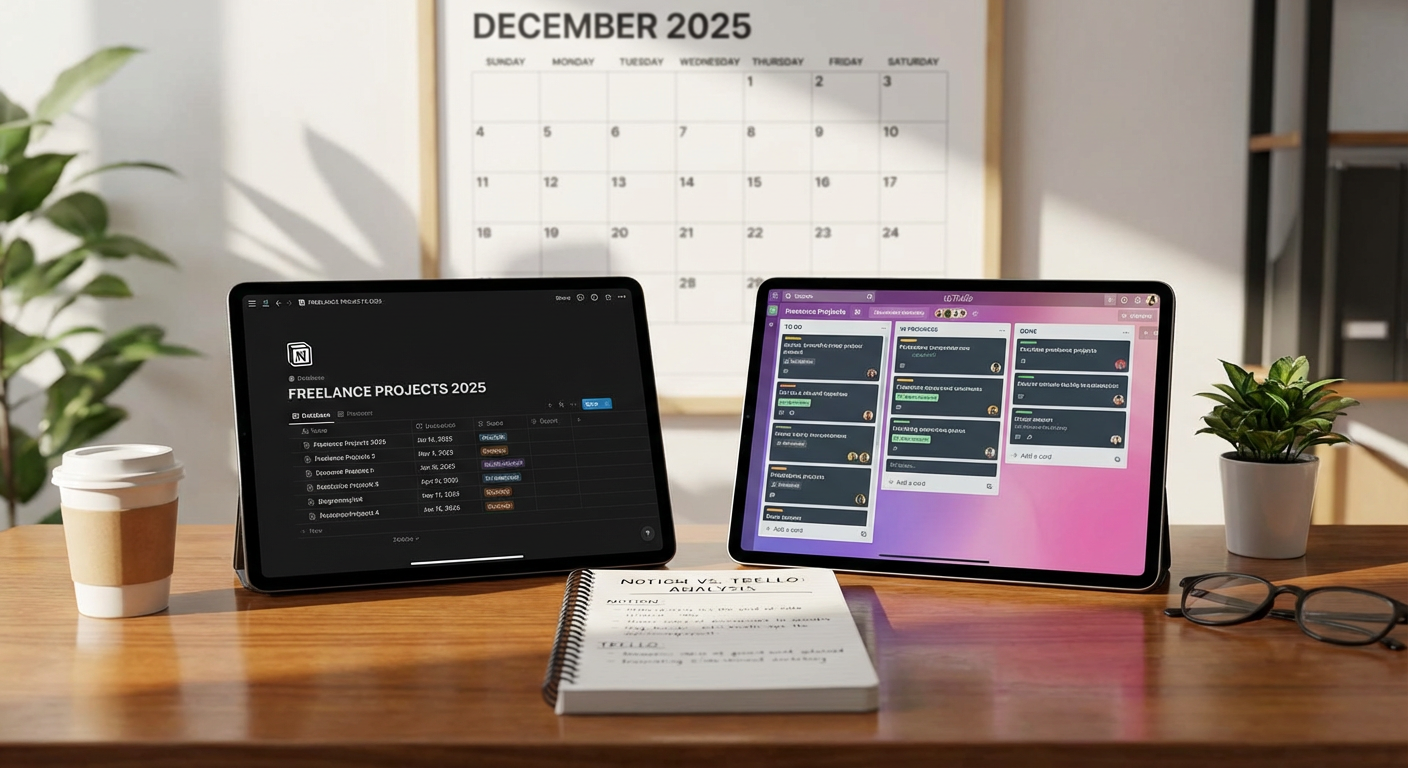
Notion and Trello both help you organize work, but they take different approaches. Trello uses a card-based system that’s visual and simple. You create boards, add cards, and move them through columns. It’s fast to set up and easy to understand, which makes it great for straightforward projects or small teams. The downside is that Trello can feel limited if you need more than basic task tracking. Custom fields and automation require paid plans, and managing complex information gets clunky.
Notion, on the other hand, is a workspace that combines notes, databases, and task management. You can build custom systems that fit your exact workflow, which is powerful but takes time to set up. Notion has a learning curve. If you want a tool that does one thing well, Trello wins. If you need a central hub for everything from client notes to invoices to project timelines, Notion is worth the effort. The choice depends on whether you value simplicity or flexibility more.
- FreshBooks Versus Wave for Invoicing
FreshBooks and Wave both handle invoicing, but the pricing models are completely different. Wave is free for basic invoicing and accounting, which makes it attractive for new freelancers or anyone on a tight budget. You can send unlimited invoices, track expenses, and manage receipts without paying a monthly fee. Wave makes money by charging for payment processing and payroll services, so the core features stay free.
FreshBooks costs between $17 and $55 per month depending on your plan, but you get more polish and features. Time tracking is built in, the interface is cleaner, and customer support is faster. FreshBooks also offers better reporting and automation, like recurring invoices and late payment reminders. If you’re just starting out or have simple needs, Wave is hard to beat on value. If you bill by the hour, work with retainer clients, or want a more professional look, FreshBooks justifies the cost. The decision comes down to budget versus convenience.
- Grammarly Premium Versus ProWritingAid for Editing
Both Grammarly Premium and ProWritingAid help you catch mistakes and improve your writing, but they have different focuses. Grammarly is faster and more polished. It works smoothly across browsers, email clients, and documents. The suggestions are clear, and the interface is simple. Grammarly Premium adds tone detection, plagiarism checking, and more advanced grammar fixes. It’s ideal if you write quickly and need real-time feedback without interruptions.
ProWritingAid digs deeper into your writing style. It offers detailed reports on sentence structure, readability, overused words, and pacing. The feedback is more granular, which is helpful for long-form content or anyone working on a book. The trade-off is speed. ProWritingAid can feel slower, and the interface isn’t as smooth. It’s also cheaper, with lifetime licenses available instead of monthly subscriptions. If you write emails and quick content, Grammarly is the better fit. If you’re editing longer projects and want to improve your overall style, ProWritingAid offers more depth for less money.
- Calendly Versus Acuity Scheduling for Booking Clients
Calendly and Acuity Scheduling both let clients book time with you automatically, but they cater to different needs. Calendly is simple and fast. You set your availability, share a link, and clients pick a time. The free plan covers basic scheduling, and paid plans add features like payment collection and calendar integrations. Calendly works well if you just need to eliminate the back-and-forth of finding meeting times. It’s clean, straightforward, and doesn’t overwhelm you with options.
Acuity Scheduling offers more control. You can create intake forms, charge for appointments, and manage multiple types of sessions with different durations and prices. It’s built for service providers who need more than just a calendar link. Coaches, consultants, and freelancers who bill for discovery calls often prefer Acuity because of the added flexibility. The downside is complexity. Acuity takes longer to configure, and the interface isn’t as intuitive. If you want something that works out of the box, Calendly is the winner. If you need custom workflows and don’t mind a setup process, Acuity gives you more options.
- Slack Versus Microsoft Teams for Client Communication
Slack and Microsoft Teams both handle messaging and collaboration, but they fit different situations. Slack is built for fast, informal communication. Channels keep conversations organized, and integrations with tools like Google Drive and Trello make it a central hub. Slack feels lighter and more flexible, which is why startups and creative teams tend to prefer it. The free plan is functional, though message history is limited to 90 days.
Microsoft Teams is better if your clients already use Microsoft 365. It integrates directly with Word, Excel, and Outlook, which means fewer apps to juggle. Teams also includes video calls and file storage as part of the package. The downside is that Teams feels heavier and more corporate. The interface isn’t as clean, and it can be overwhelming if you don’t need all the features. If you work with tech-savvy clients or agencies, Slack is usually smoother. If your clients are in traditional industries or use Microsoft products, Teams will fit their workflow better. The choice often depends more on your clients than your own preferences.
- Canva Pro Versus Adobe Creative Cloud for Design Work
Canva Pro and Adobe Creative Cloud serve different types of designers. Canva Pro is a template-based tool that makes design accessible. You can create social media graphics, presentations, and marketing materials quickly, even if you have no formal design training. The library of templates and stock images is massive, and the interface is friendly. Canva Pro costs around $13 per month, which is affordable for freelancers who need decent visuals without hiring a designer.
Adobe Creative Cloud includes Photoshop, Illustrator, and InDesign, which are industry-standard tools for professional design work. The learning curve is steep, and the subscription costs between $55 and $85 per month depending on the plan. Adobe tools offer far more control and precision, which matters if you’re doing branding, print design, or complex illustrations. The trade-off is time. What takes five minutes in Canva might take an hour in Illustrator if you’re still learning.
If you need quick, good-enough visuals for social media or blog posts, Canva Pro is the smarter choice. If you’re a designer or work with clients who expect professional-grade files, Adobe is necessary. Many freelancers use both, relying on Canva for speed and Adobe for final deliverables.
- Google Workspace Versus Microsoft 365 for File Management
Google Workspace and Microsoft 365 both offer email, storage, and productivity apps, but they handle collaboration differently. Google Workspace is built for real-time collaboration. Multiple people can edit a document simultaneously, and changes sync instantly. The interface is simple, and everything lives in the cloud by default. Google Drive makes sharing files easy, and the pricing starts at $6 per user per month.
Microsoft 365 includes desktop versions of Word, Excel, and PowerPoint, which some clients still prefer. The apps are more powerful, especially for complex spreadsheets or formatting-heavy documents. Microsoft also offers more storage on lower-tier plans and better integration with Outlook for email management. The downside is that collaboration isn’t as smooth. Real-time editing works, but it feels like a feature added later rather than built from the ground up.
If you work with clients who value simplicity and speed, Google Workspace is usually the better fit. If your clients send you Word documents and expect them back in the same format, or if you need advanced Excel features, Microsoft 365 makes more sense. Both are reliable, so the decision often comes down to what your clients already use.
- LastPass Versus 1Password for Password Management
LastPass and 1Password both store your passwords securely, but they differ in pricing and features. LastPass offers a free plan that works across all devices, which makes it accessible for freelancers just starting to take security seriously. The paid plan adds features like emergency access and advanced multi-factor authentication for $3 per month. LastPass is easy to set up and works well for basic password management.
1Password doesn’t have a free plan, but the $3 per month individual plan includes features like travel mode, which hides sensitive vaults when you cross borders. The interface is more polished, and customer support is faster. 1Password also offers better family plans if you want to share certain passwords with a partner or assistant. Security-wise, both are strong, though 1Password has a slightly better reputation among security professionals.
If budget is tight and you just need password storage, LastPass is a solid choice. If you handle sensitive client data or want a more refined experience, 1Password is worth the small investment. Both are better than reusing passwords or keeping them in a spreadsheet, so the most important thing is picking one and using it consistently.
- Loom Versus Zoom for Client Videos
Loom and Zoom both record video, but they’re built for different purposes. Loom is designed for asynchronous communication. You record your screen, add a webcam bubble, and share a link. It’s fast and requires no scheduling. Loom is perfect for sending project updates, explaining feedback, or walking clients through a process. The free plan allows up to 25 videos, and paid plans start at $8 per month.
Zoom is built for live meetings. You can record sessions, but the focus is on real-time interaction. Zoom includes features like breakout rooms, polls, and webinar hosting, which Loom doesn’t offer. The free plan limits meetings to 40 minutes, and paid plans start at $15 per month. Zoom is overkill if you just want to send a quick video message, but it’s necessary if you run group calls or need professional meeting features.
Many freelancers use both. Loom handles quick updates and feedback, while Zoom covers discovery calls and client meetings. If you had to pick one, consider how often you need live interaction. If most of your communication can be asynchronous, Loom saves time. If clients expect face-to-face meetings, Zoom is the standard.
Choosing the right tools for your freelance business isn’t about finding the single best option. It’s about understanding what you actually need and what you’re willing to trade off. Some tools save time but cost more. Others are free but require more manual work. The best setup is the one that matches your workflow, your clients, and your budget. Start with the basics, test as you go, and don’t be afraid to switch if something isn’t working. The tools that help you deliver great work and stay organized are the ones worth keeping.