 on
on
10 Calendar and Time Management Tools for Freelancers Compared: Which One Fits Your Workflow?
Choosing the right calendar and time management tool can make or break your freelancing business. With dozens of options available, each promising to solve your scheduling problems, how do you know which one actually delivers? This guide compares ten essential tools, weighing their strengths against their weaknesses so you can make an informed decision. Whether you prioritize simplicity, advanced features, or budget considerations, you’ll find practical insights to help you pick the tool that matches your working style.
- Legiit: Freelance Platform with Built-In Time Tracking and Project Management
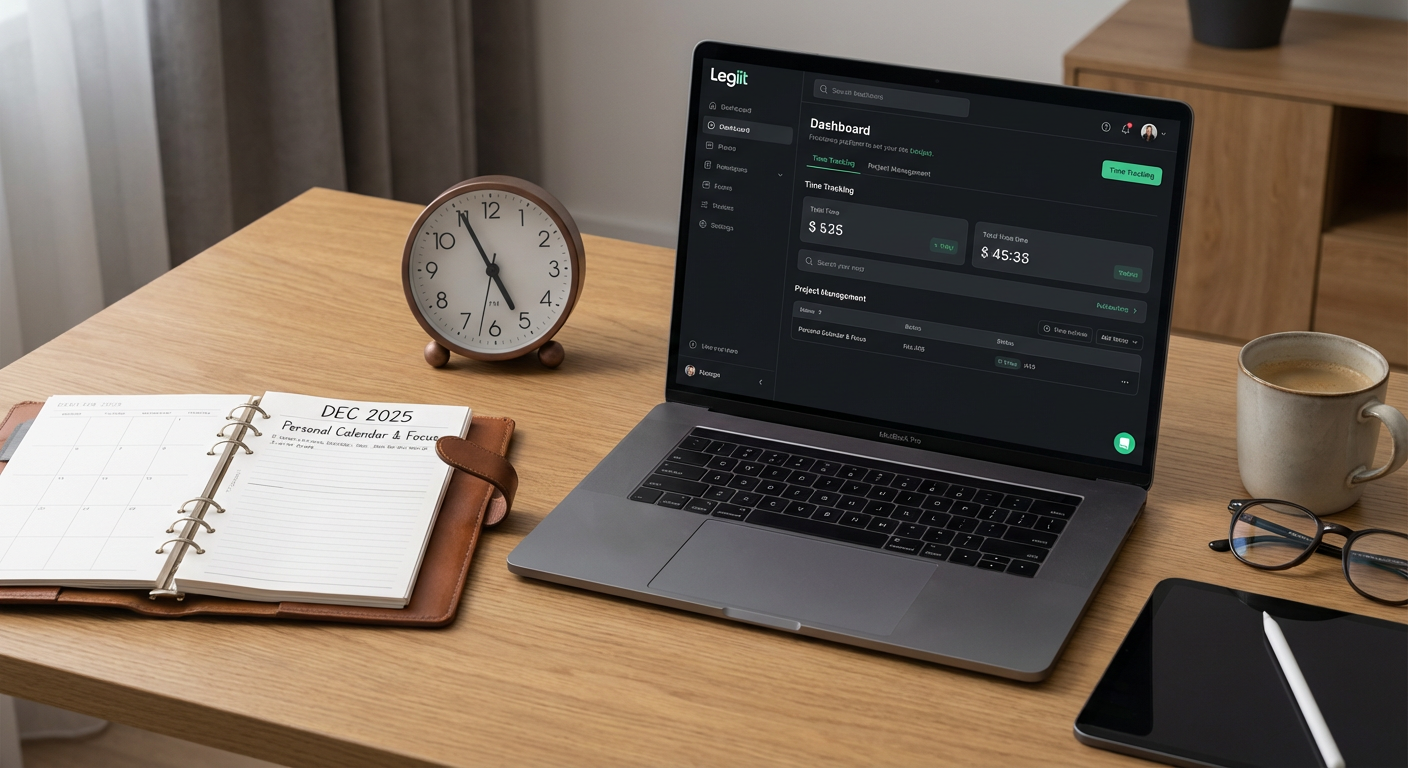
Legiit stands out because it combines project management with time tracking in a freelancer-focused environment. Unlike general calendar apps, it lets you manage client work, track billable hours, and schedule tasks all in one place. The main advantage is consolidation: you avoid jumping between multiple tools to manage your workload.
The trade-off is that Legiit works best when you’re actively using it for client projects. If you need a standalone calendar for personal appointments or non-client work, you’ll still need a secondary tool. For freelancers who want client management and scheduling under one roof, Legiit offers solid value. For those who prefer specialized, dedicated calendar apps, it might feel like a jack-of-all-trades approach.
- Google Calendar vs. Outlook Calendar: The Free Giants Go Head-to-Head
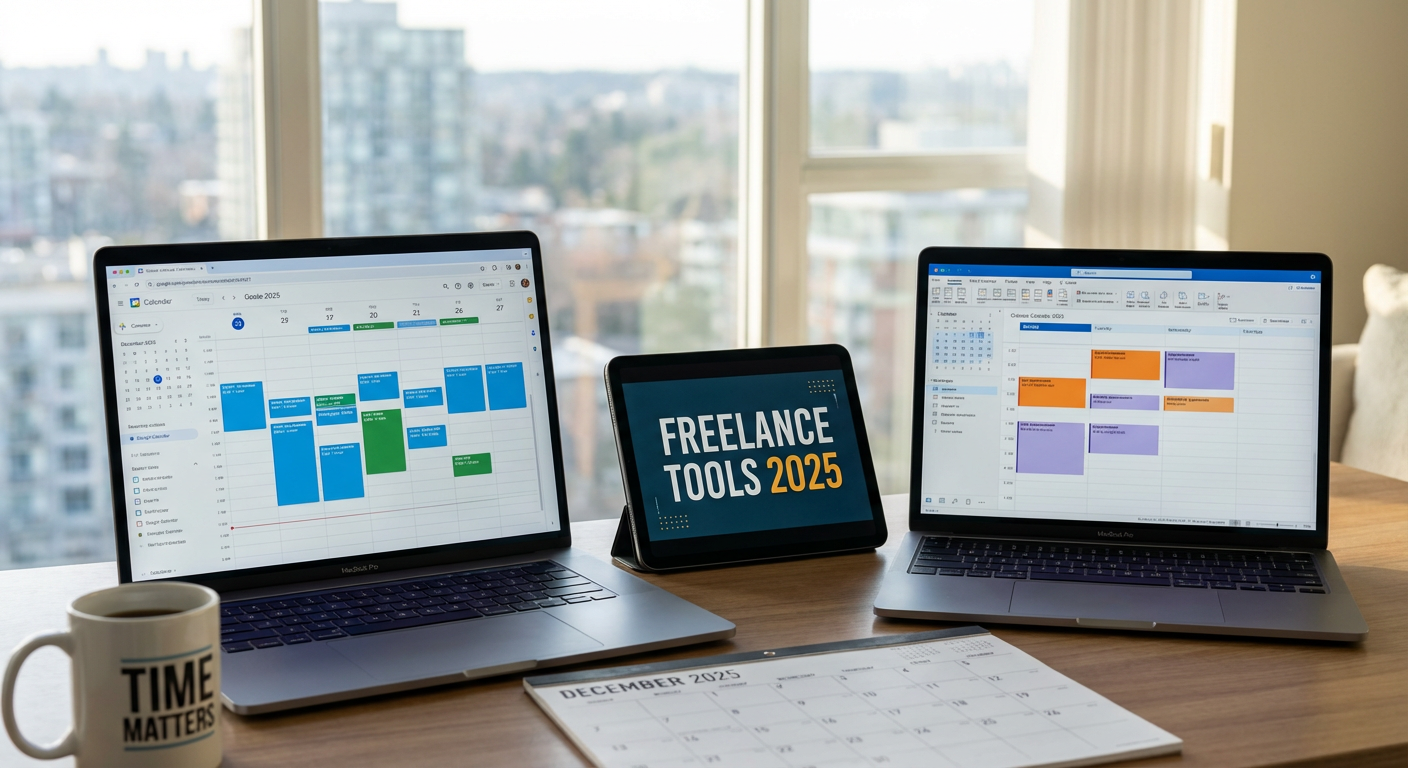
Google Calendar wins on simplicity and cross-platform access. It syncs instantly across devices, integrates with Gmail, and offers easy sharing options for collaborative scheduling. The interface is clean and straightforward, making it ideal for freelancers who want basic functionality without a learning curve.
Outlook Calendar, on the other hand, shines in professional settings and offers tighter integration with Microsoft Office tools. If you use Word, Excel, or Teams regularly, Outlook creates a more cohesive workflow. The downside? It can feel cluttered compared to Google’s minimalist design. Both are free, so the decision often comes down to which ecosystem you already live in. Google users rarely switch to Outlook, and Microsoft loyalists feel the same way in reverse.
- Calendly vs. Acuity Scheduling: Appointment Booking Platforms Compared
Calendly built its reputation on simplicity. You set your availability, share a link, and clients book time slots without the usual email back-and-forth. The free version covers basic needs, but you’ll hit limits quickly if you want multiple event types or integrations. The paid tiers start at a reasonable price and add features like payment collection and team scheduling.
Acuity Scheduling offers more customization right out of the gate. You can create intake forms, accept payments, and manage complex scheduling scenarios that Calendly struggles with. The interface is busier, though, and new users sometimes find it overwhelming. If you need advanced features and don’t mind a steeper learning curve, Acuity delivers more power. If you want dead-simple booking that works in minutes, Calendly is hard to beat. Price-wise, they’re comparable once you reach similar feature sets.
- Notion Calendar (Formerly Cron) vs. Fantastical: Modern Calendar Apps for Power Users
Notion Calendar entered the market with keyboard shortcuts and speed as its calling card. It’s designed for people who hate clicking through menus and want to manage their schedule at lightning pace. The natural language input works well, and the integration with Notion makes it appealing if you already use that platform for notes and projects.
Fantastical has been the premium choice for Mac and iOS users for years. It offers beautiful design, powerful parsing of natural language entries, and extensive customization. The catch is the subscription cost, which runs higher than most calendar apps. Windows users are out of luck since Fantastical focuses exclusively on Apple devices. Notion Calendar works across platforms and costs nothing, but it lacks some of the polish and third-party integrations that Fantastical users love. Your operating system might make this decision for you.
- Toggl Track vs. Clockify: Time Tracking Tools Put to the Test
Toggl Track has earned its place as a favorite among freelancers who bill by the hour. The interface is intuitive, reports are easy to generate, and the browser extension makes tracking almost frictionless. You can categorize time by project and client, then export data for invoicing. The free version is generous, but teams and advanced reporting require a paid plan.
Clockify offers similar functionality with a different pricing approach. The free tier includes unlimited users and projects, making it attractive for freelancers who collaborate or want to track multiple income streams without paying. The downside is a slightly less refined interface and fewer integrations compared to Toggl. If budget is tight and you need robust tracking, Clockify wins. If you value polish and don’t mind paying for premium features, Toggl Track feels more professional.
- Todoist vs. TickTick: Task Managers with Calendar Integration Compared
Todoist keeps task management clean and focused. You can set due dates, create recurring tasks, and view everything in a calendar layout. The natural language input works smoothly, and the app syncs reliably across devices. For freelancers who want tasks and scheduling in one tool without excess features, Todoist hits the sweet spot.
TickTick packs in more features at a lower price point. You get a built-in Pomodoro timer, habit tracking, and calendar view, all included in the premium tier that costs less than Todoist. The interface is busier, though, and some users find it tries to do too much. If you want extra productivity features and don’t mind complexity, TickTick offers better value. If you prefer minimalism and are willing to pay a bit more for it, Todoist provides a cleaner experience.
- Sunsama vs. Motion: AI-Powered Planning Tools Face Off
Sunsama takes a mindful approach to time management. Each day starts with a planning ritual where you pull in tasks from other tools, estimate time required, and schedule blocks on your calendar. The guided workflow helps prevent overcommitment, and the daily shutdown routine encourages reflection. The price is high, though, and the deliberate pace frustrates people who want to move quickly.
Motion uses AI to automatically schedule your tasks based on deadlines and priorities. Instead of manually planning your day, Motion rearranges your calendar as new tasks appear or priorities shift. It’s powerful for people who struggle with planning, but the automation can feel rigid. Some users love having decisions made for them; others feel like they’ve lost control. Motion costs more than Sunsama, and both are expensive compared to basic calendar apps. The choice depends on whether you want guided reflection or automated scheduling.
- Trello vs. Asana: Project Management Tools with Calendar Views Analyzed
Trello’s board-and-card system makes visual planning intuitive. You can add due dates to cards and view them in calendar mode, turning your project board into a schedule. The flexibility is both a strength and weakness: you can adapt Trello to almost any workflow, but it requires setup and discipline. The free version works well for solo freelancers, while teams need paid plans for advanced features.
Asana offers more structure out of the box. Projects come with list, board, timeline, and calendar views built in. For freelancers managing multiple clients with overlapping deadlines, Asana’s organization helps keep everything straight. The learning curve is steeper than Trello, and the free version has tighter limits. If you want structure and detailed project tracking, Asana provides more tools. If you prefer flexibility and visual simplicity, Trello adapts better to individual preferences.
- RescueTime vs. Timing: Automatic Time Tracking Apps Evaluated
RescueTime runs in the background, tracking which apps and websites you use throughout the day. It generates reports showing where your time actually goes, often revealing surprising patterns. The free version provides basic insights, while the premium tier adds features like blocking distracting sites. The weakness is passive tracking: it knows you had a browser open but can’t tell if you were working or browsing.
Timing, available only for Mac, automatically tracks time spent in every app and document. It’s more detailed than RescueTime and designed specifically for billing clients. You can review your day, assign time blocks to projects, and generate accurate invoices. The interface is Mac-native and polished, but Windows and Linux users can’t access it. For Mac-based freelancers who bill hourly, Timing provides superior detail. For cross-platform tracking with simpler insights, RescueTime covers more devices.
- Apple Calendar vs. Third-Party Apps: When the Built-In Option Makes Sense
Apple Calendar comes free on every Mac, iPhone, and iPad. It syncs through iCloud, handles multiple calendars, and integrates with other Apple apps. For freelancers already invested in the Apple ecosystem, it covers basic scheduling needs without additional cost or complexity. The interface is familiar, and it just works.
The limitation is features. Apple Calendar doesn’t offer natural language input, advanced scheduling links, or the customization that third-party apps provide. It’s perfectly adequate for tracking appointments and deadlines but falls short for complex scheduling needs. The question is whether you need more than basic functionality. Many freelancers start with Apple Calendar and only switch when they hit specific limitations. If you’re not sure what features matter to you yet, starting with the built-in option costs nothing and helps you identify what you’re missing. Then you can choose a paid app that addresses those specific gaps rather than paying for features you don’t need.
No single calendar or time management tool dominates every category. Google Calendar and Apple Calendar work well for straightforward scheduling without cost. Calendly and Acuity solve appointment booking but serve slightly different needs. Toggl and Clockify both track time effectively with different pricing models. The right choice depends on your specific workflow, budget, and the features that matter most to your freelancing business. Start by identifying your biggest pain point, whether that’s client scheduling, time tracking, or project organization, then choose the tool that addresses that problem most directly. You can always switch later as your needs change.